Fair and Latest Stuff of WordPress

We Deliver What Our Readers Expect

Monday, 28 October 2013

WordPress Embellished with Collaboration & File Sharing Features with Cloudup Acquisition

WordPress is a free as well as open source blogging tool that based on PHP and MySQL to run on a web hosting services. Comes with numerous features, it is a great CMS and open source blogging tool that used by more than 18.9% of the top 10 million websites as of August 2013. However, this new CMS also embellished with many new features like collaboration, file sharing with cloudup acquisition and more.

WordPress Embellishment

Last month, WordPress.com's parent company Automattic added its main aim of world domination, which is powering most of the planets' websites with the buying of file-sharing startup Cloudup. Providing more information on these new features, Cloudup is still in its beta test stage, so it is not obtainable in the market for public. Mainly, this new features' technology is focused on helping you share videos, music, docs, images, drag and drop type environment.

One of the best things is that you can also share videos live with the audience at the time of uploading files with sync. The company decides to done this deal because WordPress clear interest in enhancing content and sharing. However, the terms of the attainment are not released. The company 'Automattic' is going to keep Cloudup in beta phase as well as will accept some additional 5000 beta users on the company' site.


Recommended Reading: How WordPress as a CMS Helps Effective Control?


However, WordPress also clarified that it will use Cloudup technology in order to generate wished elements of WordPress blog like collaborative editing, where two or more than two people can easily work on the same post. By considering this feature in mind, we can say that it is a big enhancement for blogs with different owners. If you are looking to edit another blog post of any person, who is already in it, you will be served with a warning of their presence and will get option to take over their post.

You can prevail their work if you have edited post of any person without knowing them. Previous month, Automattic founder Matt Mullenweg said that "he intended for WordPress to be the platform behind most of the world websites – an ambitious goal, but he already has about 20 percent, and his company's market share is growing by about two or three percent a year".

Summary: "Now, WordPress has been embellished with some new features like collaboration, file sharing and many more that will be extremely helpful for blog users. To get more information about WordPress and its features, you can continue your ready and make yourself aware about these features".

Author Bio: Perception System

We at Perception System, provide all types of WordPress development services like theme, plugin, design, customization, etc.. We always happy to see you come up at us with WP queries. Click here to dig deep hire WordPress developer service.

Twitter | Facebook


Tuesday, 8 October 2013

SEO Basics for WordPress Users and Beginners

According to SearchEngineWatch, WordPress now powers one-sixth of all websites. That's a staggering number of sites and a massive achievement considering the wide range of hosting and development platforms out there. It's a testament to just how beneficial, and easy to use WordPress as a CMS is.

SEO Basics of WordPress

Of course, the number of high quality WordPress themes on offer doesn't hurt anything either. Given the number of users adopting this platform, it's somewhat surprising that more don't know how to improve their SEO results using the tools, plugins and other options native to WordPress. This brief guide will help.

Get Your Post Names Right

WordPress automatically creates a URL for each post or page that you put up on your site. And while it generally does a decent job of it, there are times that the result isn't ideal. You need to make sure that your page and post URLs don't have a bunch of question marks and random text bits in them.

Instead, it needs to include your domain name and the name of the post. You can control this through the built-in Permalink Settings feature found in your control panel. The more streamlined and simple your URLs are, the better your SEO results will be.

Use Yoast – Install It Now

You're likely to find this piece of advice on every single post detailing SEO for WordPress and there are some very good reasons for this. Yoast is a simple, easy to use plugin that can offer dramatic benefits to your online visibility. It's free (which is always appreciated), and it's native to WordPress.

It's also one of the most comprehensive tools out there for digging into the SEO aspects of each page and post on your site. It allows you to track just how well optimized your pages are, makes suggestions for better results, tells you where more information or additional keywords are needed and more.

However, you'll need to go through the set up with care. Make sure you set it up correctly and that it's configured right.

Always Optimize Your Images

This is another bit of advice regularly given to WordPress users, but it's surprising how few site owners and bloggers actually follow it. When you upload an image to your WordPress site, you're given a number of different fields that can be filled in. You don't HAVE to fill in those fields, but you should.

They can offer significant advantages and boost your SEO through Google image searches. The title, alternate text, caption, description and even link URL can all be optimized with the appropriate keywords and descriptive text.

Have Tracking Capabilities Installed

If you really want to improve your SEO results, you need some way to track your efforts. The most common (and probably the best overall) option is Google Analytics. You can add Google Analytics to your WordPress site relatively easily – just follow Google's instructions on the Analytics page of your account.

Using this tool, you can dig down into a broad range of different metrics for your site, including the bounce rate, where most visitors land initially, where they go once there, the pages of interest to most visitors and much more. With the information gleaned here, you can modify your site, your blogging schedule and even the focus of your entire site to take advantage of visitor trends.

SEO for WordPress users is actually much simpler than it is for those using other platforms. If you choose the right tools and take the appropriate steps, you can build excellent results and draw in much more traffic to your website or blog.

Author Bio: ThemeFuse

Anny Solway is a dedicated writer at ThemeFuse – a web studio that creates original WordPress templates, that can be used out of the box. She loves to share blogging and technology tips.

Twitter | Facebook


Thursday, 12 September 2013

Developing Plug-ins for WordPress? 5 Things You Must Care of

Developing Plug-ins for WordPress?

According to survey, about 170,000 sites are hacked in 2012 through plug-ins, theme, host and end-user. Among all, approximate 22% of WP sites are hacked due to plug-in vulnerabilities and 29% due to themes, according to image show below.

How Do WordPress Blogs Get Hacked?

Looking at such figures, we have to consider WordPress security while developing themes or plug-ins. So, to tackle this issue, here we come with some effective tricks that help users/developers while they are develop WordPress themes and plug-ins. So, what are you waiting for? Start reading this article and get to know how secure is your website?


1#. Develop with debugging ON

While developing plug-in, we don’t want to trigger by deprecated notices, warnings or fatal errors. Moreover, such type of errors unveils your server information like file paths, if your server has error reporting turned ON. With this, you are invite hackers to hack your site in better manner. If you are turning on to debug mode, it will cause such types of errors to be seen and thus, you can simply path them accordingly. It is recommended to add define( WP_DEBUG, true ); into your wp-config.php file to enable debugging.


If we are talking about production environment, you want such things should be hidden to end-users. However, you may want them logged, so you can track them secretly. In such situation, you can add this:

● define( 'WP_DEBUG_LOG', true );
● define( 'WP_DEBUG_DISPLAY', false );

Such things allow you to log them inside the wp-content/debug.log file.


2#. Avoid direct access to your files

There are many hosts allows direct accessing to the file on servers, adding those who are belonging to your plug-ins. If you are directly accessing your plug-in files, it will cause PHP errors that seem like rule #1, will also direct to confession of your WordPress install path.


If you want to avoid such types of errors, you simply have to add a simple ABSPATH check that terminates the script, if it accesses outside of WP.

if ( ! defined( 'ABSPATH' ) ) exit; // Exit if accessed directly.


3#. Prevent unauthorized access

Users should have to stop unauthorized users from breaking things, if functionality inside their plugin gives access or allows change of sensitive data. Users can use the handy current_user_can() function to returns whether or not a user has access to a given capability, if he want to perform an action.


4#. Avoid CURL when posting remotely

It is one of the commonest bugbears. Using WordPress' WP_HTTP class and wrapper functions, wp_remote_get and wp_remote_post, one should and can easily avoid CURL directly. One of the best things about using such functions is it takes care of encoding data along with offering fallbacks while CURL is not available.


5#. Nonce your forms and urls

CSRF stands for Cross-site request forgeries, where hackers can trick a user into executing actions against their determination. Talking about the nonce (Number used ONCE), it is a unique token created to use an action name and a timestamp that you can use for checking a request. Users can able to add Nonces to both forms (using wp_nonce_field()) and urls (using wp_nonce_url()).

For Example:
Take your delete link and and nonce it:

<a href="<?php echo wp_nonce_url( 'delete.php?id=1', 'delete_link' ); ?>"></a>
We are verifying the nonce is valid using wp_verify_nonce, when this is processed:

1). if ( ! wp_verify_nonce( $_GET['_wpnonce'], 'delete_link' ) )

2). die( 'Security check' );
So, below given are effective 5 tips that you should be aware of while developing WordPress plug-in for your site. If you want to create secure plug-in/s, then go for details of our WordPress plugins development service.


Image Credit: mikejolley.com

Author Bio:

Myself . I am a WordPress designer and developer at WordPressCMSExperts since 2005. I am fond of writing and sharing knowledge through my words. I’m an active writer and speaker of WordPress related service like WordPress theme development, plugin development, etc.

Friday, 6 September 2013

Is Using Robots.Txt File Tutorial for a WordPress Site Beneficial?

The robot text file, which is also known as robots.txt, is a very popular and long-running web standard that can be used to prevent Google and other popular search engines to access some parts of your website. Many of you all may think that why to block Google and other search engines from parts of your website.

The most common and important reason is to prevent Google from indexing pages on your website that are duplicates of pages. Apart from this, you can also prevent those pages that are not important for indexing like portfolio page, contact us and more.

Guide To Customize

As we all know that Google is penalizing sites that are with duplicate content. The other major reason is to prevent Google from linking to undefended premium content on your website. There are various, who like to prevent Google from using their images in Google search or from downloading large files so they can use robots.txt files.

Apart from this, if you are running a large authority WordPress website, Google may be loading the same page for several times with different names, using up a big part of your bandwidth and webserver computer processing power.

Guide To Customize

Through special robots.txt file, you can tell Google to only access those pages for only one time. With the help of robots.txt, you can tell Google about your XML or text site map as it indexes new pages on your website as quickly as it re-crawl your website.


Get Basic Information about Robots.Txt File:

In the root directory of a website, the robots.txt file is an optional file. In your robots.txt, you are also allowed to implement a crawl-delay: directive that helps to scale back bot crawling activity. Users of robots.txt can also add one or more sitemap: directives with a reference to your website’s sitemap or sitemaps.

At the time of editing this file, it is essential for you to be careful as you can mistake at this stage and block the search engines from accessing your website. Many of you may get a 404 file not found error which means you have made mistake anywhere and you don’t have a robots.txt file. You will see a simple text file with lines labeled user-agent, sitemap, comment lines, disallow, plus blank lines and more.

Guide To Customize

Get Robots.Txt File In WordPress:

Here, you can find some instructions that will work for you if you use WordPress to manage the root of directory of your website. It means your major blog doesn’t have any words in it after the domain name.

For an example if your main WordPress page is http://xyz.com, WordPress manages your robots.txt file. But if your main WordPress page is http://xyz.com/blog, may WordPress doesn’t manage your robots.txt file. Now, you need to work on it directly using FTP upload.

Guide To Customize


Robots.txt WordPress Plugins:

On the web, you would find lots of SEO plug-ins that can create a robot.txt files that can be used very carefully as it can stop Google and other search engines to index your legitimate pages.

We can say that it is the silliest errors that can harm your website’s ranking. iRobots.txt SEO is a great plugin that can creates the robots.txt files. By using this generator, you cannot block or allow anything easy like a sitemap line to tell Google and other search engines to find your sitemap.


What You need to put in your WordPress Robots.Txt File?

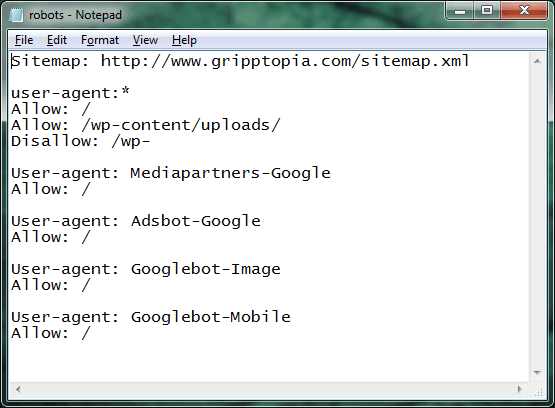
Generally, if you want to block WordPress login and help directories that all start with WP. You need to put this code under allow: or Disallow. You also need to add the following code:
Allow: /wp-content/uploads if you want your images to display in Google and Bing pictures.

Google will get only an error page when it tries to index a trackback, so add this code too:
Disallow: */trackback. It is better for you to use this line to enable Google to crawl all the content to get targeted ads if you are using Google Adsense.

Image Credit: flickr.com, searchengineland.com, gripptopia.com, wordpressians.com

Author Bio:

Myself . I am a WordPress developer and consultant at WordPressCMSExperts since 2005. I am fond of writing and sharing knowledge through my words. I’m an active writer and speaker of WordPress related service like WordPress theme design, plugin development, etc.

Tuesday, 3 September 2013

Guide To Customize Your WordPress Theme with Child Theme

Are you using WordPress theme on your website? No matter whether it is a free or a commercial one, if you want to customize it as per your requirements, then it is easily possible for you. Finally, you have decided to custom your WordPress theme as per your business requirements, you can make use of Child Theme that allows to keep your changes, so you don't make changes to the original theme.

Guide To Customize

Before you opt for Child Theme, it is very much important for you to get complete information about it or how it works. There are lots of different reasons that WordPress developers have started using child themes.

It gives an opportunity to developers to customize a unique layout on top of another existing theme. Being a perfect solution for beginners, it enables people to play around with building their own themes that best meet with their business requirements.

What is Child Theme Exactly?


A WordPress child theme is a theme, which takes over the functionality of another theme that is also known as parent theme. Through this child theme, you are allowed to modify and add the functionality of that parent theme.

Being one of the safest ways to modify an existing them, child theme is also easy-to-use no matter whether you are looking to some minor changes or want to customize an entire theme. You can also develop a child theme instead of changing the theme files directly.

Generally, a child theme is a WordPress theme, which runs along with original WordPress theme and it overrule the parts of it as per your specified. Without changing the original one, you can easily modify with your required features.

Get Started with Child Themes


For your information, child themes are not as difficult as it sounds. One of the key benefits of using parent theme is that you do not have to write all the HTML/CSS from scratch. This theme automatically uses any template files that you have included like footer.php or sidebar.php. In any case, if you are missing, child theme will put all the same files from its parent.

However, this functionality also provides a complete range of features to customize already obtainable templates. This functionality is also excellent for touching up areas that are around your website for special events like adding designs for any special seasons like Christmas, Thanksgiving Day, New Years or more.

How to Do It?


Firstly, your original theme that is also known as parent theme, lives in your /wp-content/themes/directory. For an example: develop a child theme for WordPress default Twenty Twelve theme. After that, create a new directory along with the Twenty Twelve themes in order to develop a child theme.

Child Theme Directory

All the directories require inside to be a valid child theme that is a style.css files with the following content:


1
2
3
4
5
6
7
8
9
10
11

/*
Theme Name:     Twenty Twelve Child
Theme URI:      http://wpdailythemes.com/
Description:    Child theme for Twenty Twelve
Author:         Joseph
Template:       twentytwelve
Version:        1.0.0
*/
@import url("../twentytwelve/style.css");

Mainly, there are two important parts there:

Template: twentytwelve - that tells WordPress that this theme is a child theme of the twenty twelve theme.

@import url "/twentytwelve/style.css" that loads the parent theme style.css as a starting point.

Now, you can easily log into your WordPress dashboard and can see your Twenty Twelve Child Theme there and get it. Finally, you will get your very own Child Theme that has some cool features of your desire.

Got Your Own Child Theme & Thinking Now What to do?


Now, whenever you look forward to customize your own theme, you can do it in your child theme. In the parent theme, files in your child theme overrides files of the same name. So, if you want to change any file from your parent theme, you need to copy your child theme and then make your modifications there. The same goes for any template that may not be included in your parent theme. Now save them in your child theme and WordPress can use it.

So, this is the complete guide to customize Your WordPress theme using child theme that allows you to modify your theme with your desired features.

Author Bio:

Myself . I am a WordPress programmer and consultant at Perception System. I am fond of writing and sharing knowledge through my words. I’m an active writer and speaker of WordPress related service like WordPress responsive theme design, plugin development, etc.